
Documentation Index

Fetch the complete documentation index at: https://docs.atomcommerce.io/llms.txt

Use this file to discover all available pages before exploring further.

This page covers setup and configuration for inline and accordion upsells — the messages that appear in the cart drawer or cart page. For the free shipping progress bar, see Free Shipping Bar. All settings are in Online Store → Themes → Customize → Atom Commerce Connector.

Most stores only need these settings

To get upsells working, most stores only need to:
  1. Turn on Enable Upsells
  2. Choose Inline or Accordion layout
  3. Optionally customize the message text
  4. Optionally adjust the pill colors
Everything under Advanced theme placement and Custom theme selectors is for stores where upsells appear in the wrong position. Leave those sections alone unless something looks broken.

Basic setup

1

Enable upsells

Turn on Enable Upsells. Off by default.This enables upsell messages in both the cart drawer and cart page.
2

Choose a layout

Set Upsell Layout Mode to Inline or Accordion.Not sure which to choose? See Which layout should I use? below.
3

Customize messages (optional)

Set a Progress Message if you want something other than Atom’s default. Leave it blank to use the auto-generated message.See Message templates for ready-to-use examples.
4

Style the pill (optional)

Under the inline pill color settings, adjust the background, border, and emphasis color to match your brand.The most impactful setting is Inline Pill Emphasis Text — the accent color on the key phrase like “2 more items”.

Which layout should I use?

LayoutChoose whenWhat shoppers see
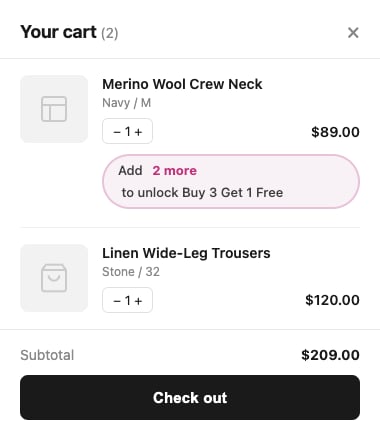
InlineThe offer relates to a specific product — Buy X Get Y, bundles, quantity-based dealsMessage directly below the qualifying cart line
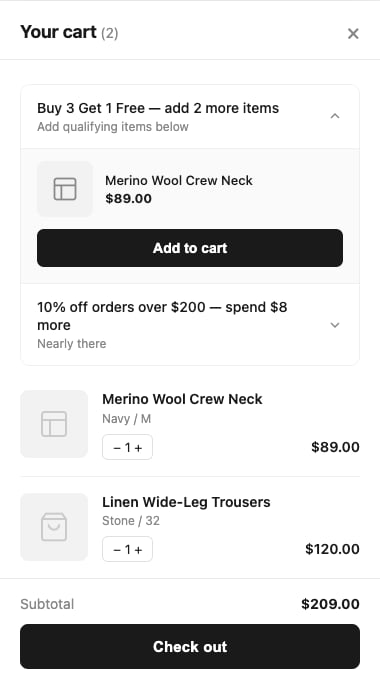
AccordionYour store runs several offers at once, or you want all upsells grouped in one placeCollapsible section at the top of the cart
If you’re not sure, start with Inline. It feels contextual and works well for most product-based offers. Switch to Accordion if you have more than two or three active offers running at the same time. To see how each layout looks, visit Cart Upsells.

Message templates

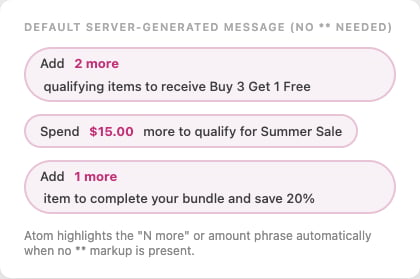
Atom generates a default message for each offer type. Use these as starting points for custom messages.

Buy X Get Y

Add **[PROGRESS_VALUE] more** to unlock [DISCOUNT]
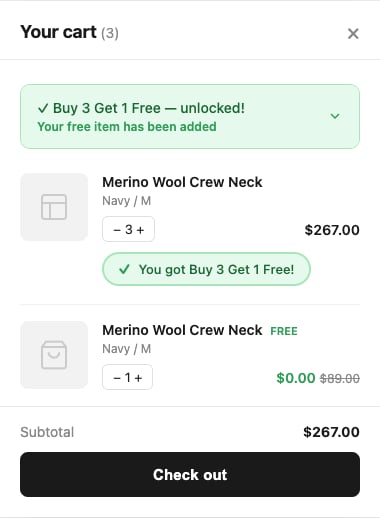
Shopper sees: Add 1 more item to unlock Buy 3 Get 1 Free

Spend threshold

Spend **[AMOUNT] more** to unlock [DISCOUNT]
Shopper sees: Spend $15.00 more to unlock 10% Off

Next tier (tiered discounts)

Add **[PROGRESS_VALUE] more** to reach tier [NEXT_TIER] of [DISCOUNT]
Shopper sees: Add 2 more items to reach tier 3 of Volume Saver

Success message

Shown when the shopper qualifies. Only visible when Show Completed Upsells is on.
You got **[DISCOUNT]**!
Shopper sees: You got Buy 3 Get 1 Free!

Message tokens

The two you need

For most offers, you only need:
TokenResolves to
[PROGRESS_VALUE]Remaining quantity or amount, chosen automatically based on offer type
[DISCOUNT]Offer name (e.g. “Buy 3 Get 1 Free”)
Use [PROGRESS_VALUE] as your default. It formats as a quantity for item-based offers and a currency amount for spend-based offers — you don’t need to know which.

Emphasis styling

Wrap any text in **double asterisks** to highlight it in your accent color:
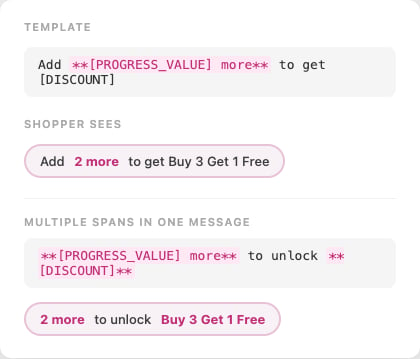
Add **[PROGRESS_VALUE] more** to get [DISCOUNT]
Inline pill showing explicit bold markup emphasis — single and multiple spans highlighted in accent color Without **...**, Atom auto-highlights the “N more” phrase in default server-generated messages: Inline pills showing auto-detected emphasis on quantity and amount phrases
Advanced tokens

Use these when you need precise control over the message format.
TokenResolves toUse when
[AMOUNT]Currency amount remaining (e.g. “$15.00”)Spend-based offers, when you specifically want the amount
[QUANTITY]Item count remaining (e.g. “2”)Quantity-based offers, when you specifically want the count
[CURRENT_TIER]Current tier numberTiered offers only
[NEXT_TIER]Next tier numberTiered offers only

Styling inline pills

These settings only apply when Upsell Layout Mode is Inline. Accordion upsells use your theme’s existing typography and colors.

Colors

The four color settings that matter most:
SettingDefaultWhat it controls
Inline Pill Emphasis Text#c1307aThe accent color on highlighted text — start here
Inline Pill Background#f8f2f6Pill background fill
Inline Pill Border#e7c2d8Pill border
Inline Pill Text#3c3c3cRegular message text
Most stores only need to change Inline Pill Emphasis Text to match their brand color. Five pill color variations — default pink, navy, green, amber, and minimal with no background
Typography

SettingDefaultRangeWhat it controls
Font Scale92%80–120%Size relative to surrounding cart text — adjust this first
Font Size13 px11–18 pxAbsolute size override
Font Weight500300–900Weight for regular text
Start with Font Scale — it keeps the pill proportional to your theme’s text rather than setting an absolute size. Pill typography variations — default scale, larger scale, light body weight, heavy body weight
Shape

SettingDefaultRange
Border Width2 px0–6 px
Border Radius999 px (fully rounded)0–999 px
Pill shape variations — fully rounded, softly rounded, square corners, heavy border, no border

Offer name

SettingDefaultWhat it does
Show Offer Name In Inline PillOffPrepends the offer title before the message
Bold Offer Name In Inline PillOnBolds the offer title when shown
Most stores leave these off. Turn on Show Offer Name if you run multiple offers and shoppers need to know which deal the message relates to. Offer name in pill — off, on with bold name, on with regular weight name
Advanced theme placement

Most stores should leave these settings alone. Only change them if upsells are appearing in the wrong position. Incorrect values can prevent upsells from appearing entirely.
These settings control how Atom inserts upsell elements into your cart’s HTML. If your theme uses non-standard cart markup, the default detection may not place upsells correctly.

Cart row identity strategy

In inline mode, Atom matches each offer to the correct row in your cart’s HTML. The default works for most Shopify themes.
ValueWhen to use
Line Item Key (default)Most themes — Shopify’s standard row identifier
Variant IDTheme doesn’t expose line keys on cart rows
Product HandleTheme uses product handle as the row identifier
Title FallbackLast resort — matches by visible product title

Inline position

ValueDescription
Inside row footer (default)Pill sits inside the row’s footer area
Between rowsPill inserted as a separate element between rows

Inline row placement

Only applies when Inline Position is Between rows.
ValueDescription
Below matched row (default)Pill directly after the qualifying cart line
Above matched rowPill directly before the qualifying cart line

Cart drawer insert mode

Controls how accordion upsells attach to the drawer container.
ValueDescription
DefaultAtom picks the insertion point automatically
Top of containerPrepended to the top of the drawer
Before target selectorBefore a CSS selector you specify
After target selectorAfter a CSS selector you specify

Custom theme selectors

Leave these blank unless you know what you’re doing. Incorrect selectors will stop upsells from appearing.
If Atom can’t locate your cart drawer or cart rows automatically, you can provide CSS selectors as JSON objects in the Drawer DOM Overrides and Cart Page DOM Overrides fields.