

Analytics is in beta. You’ll see a beta badge next to the page title in your dashboard.
Where to find it
Go to Analytics in the main menu. You’ll land on the reports list, which shows every saved report for your store.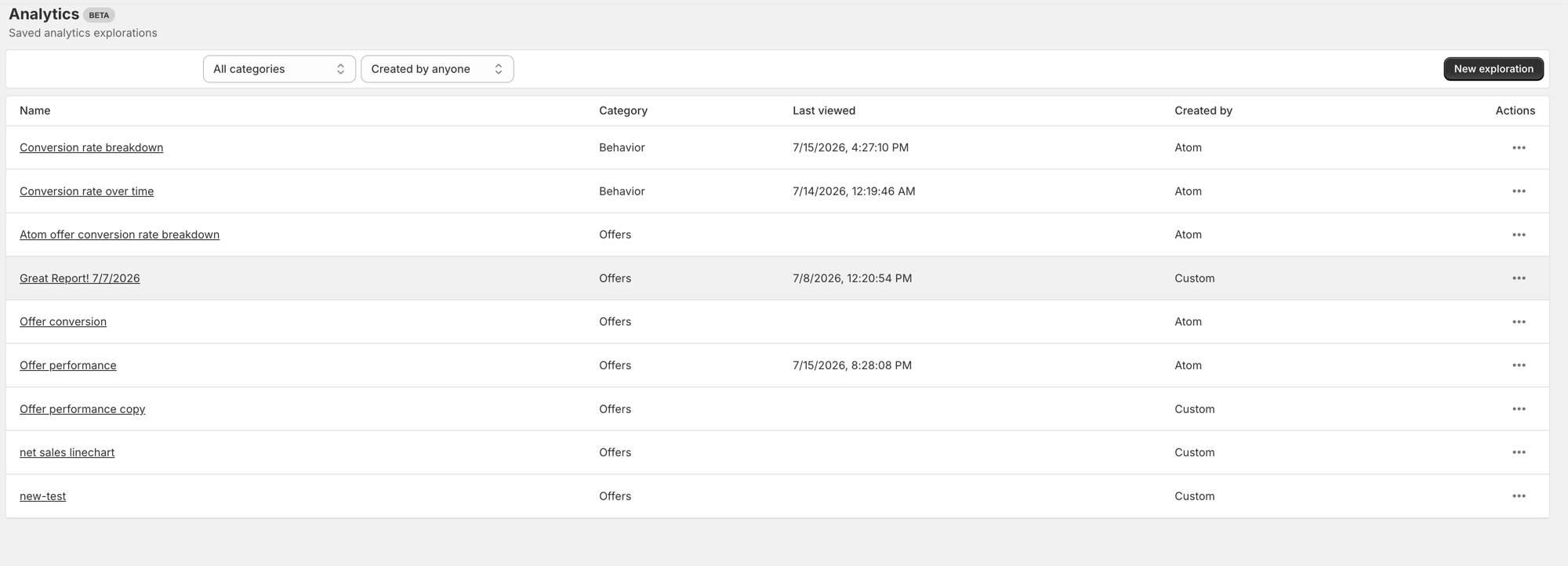
- Filter by category (for example, Offers or Behavior) with the category dropdown
- Filter by creator — Atom (built-in) or Custom (created by you or your team) — with the “Created by” dropdown
- Click New exploration to start a report from scratch
The report workspace
Opening a report (or clicking New exploration) takes you to the workspace, split into two parts:- Results, on the left: a date-range bar, a View Technical Query (AtomQL) accordion showing the underlying query, a headline number for your primary metric, a chart, and a data table.
- Controls, on the right: where you configure the dataset, metrics, dimensions, filters, and visualization. Collapse it with the arrow next to the Controls heading, or on smaller screens open it as a drawer with Configure.
Saving your work
Atom Commerce tracks changes to a report and shows a save bar when there’s something new to save.- New explorations: use Save as to save your draft as a Custom report before you leave the workspace.
- Custom reports: click Save to update the report in place.
- Built-in Atom reports: Save is disabled. Use Save as to create your own copy with your changes, which then becomes a Custom report you can edit freely.