

Where it appears in Shopify
The bar can appear in three places:- Top bar — a sticky banner fixed to the top of every page (or cart page only)
- Minicart — inside the cart drawer, above the cart lines
- Both — top bar and minicart at the same time
What shoppers see
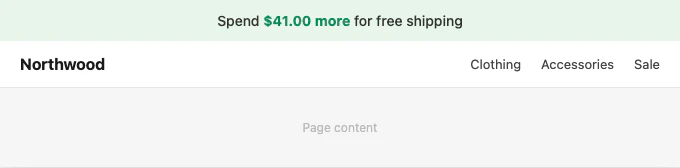
In progress — shopper hasn’t qualified yet
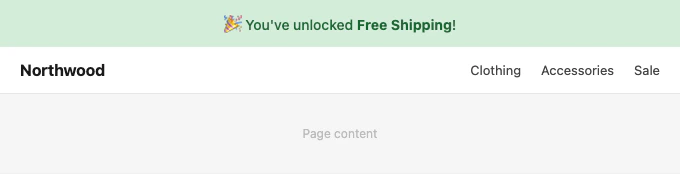
Qualified — shopper has met the threshold
A screenshot of the bar inside the cart drawer (minicart location) is not yet available.
What it requires
The free shipping bar reads from a free shipping offer created in Atom Commerce with a spend threshold. It does not connect to Shopify’s native free shipping rates or any other discount system. If no active free shipping offer exists, the bar hides automatically — unless you set an Initial Message, in which case it shows that text instead. Does it affect checkout? No. The bar is a display element only. Whether a shopper actually qualifies for free shipping is determined at checkout by Atom’s discount logic.Eligible subtotal vs cart total
The bar tracks the shopper’s eligible cart subtotal — not the raw cart total. This matters when your free shipping offer excludes certain products or fulfillment methods. Example:- Offer: Free shipping on orders over $100
- Excluded: gift cards, Pickup in Store
- Cart: 50 hoodie + 130 visible total
- Eligible subtotal: $100 (gift card excluded)
- Bar shows: $0 remaining — shopper qualifies if they choose standard shipping
Basic setup
1
Enable the bar
Turn on Enable Free Shipping Bar.
2
Choose where it appears
Set Display Location to Top Bar, Minicart, or Both.Use Top Bar for store-wide visibility — it’s the most prominent placement. Use Minicart if you want the message close to checkout without affecting the rest of the site. Use Both for maximum visibility.
3
Customize the message (optional)
Leave Progress Message and Success Message blank to use Atom’s defaults.If you customize, use Shopper sees: Only $15.00 away from Free Shipping
[AMOUNT] for the remaining spend and [DISCOUNT] for the offer name:4
Set an initial message (optional)
Add an Initial Message to show the bar even when no free shipping offer is active — for example, to announce your free shipping threshold before a shopper starts adding items.Leave it blank to hide the bar entirely when there’s no active offer.
Messages
The bar has four message slots. Only[DISCOUNT] and [AMOUNT] tokens are supported — the **bold** emphasis syntax used in cart upsell pills is not available here. The amount is automatically styled using the Amount Color setting.
Additional Text is useful for small-print notes, for example: