> ## Documentation Index
> Fetch the complete documentation index at: https://docs.atomcommerce.io/llms.txt
> Use this file to discover all available pages before exploring further.
# Cart Upsells
> Atom cart upsells show shoppers how close they are to qualifying for a deal — and what to add or spend to get there. Learn what they are, what triggers them, and how to turn them on.
When a shopper's cart is close to qualifying for an offer, Atom can show them a message explaining exactly what to add or spend. These messages appear in the cart drawer or cart page, in real time, as the shopper updates their cart.
***
## Where it appears in Shopify
Cart upsells appear in two places:
* **Cart drawer** — the slide-out panel that opens when a shopper adds an item
* **Cart page** — the full `/cart` page
Both are enabled together by the **Enable Upsells** setting in the Atom Commerce Connector theme block.
The upsell messages are controlled through your Shopify theme editor, not the Atom dashboard. Go to **Online Store → Themes → Customize → Atom Commerce Connector** to configure them.
***
## What shoppers see
Upsell messages appear in one of two layouts, depending on how you configure the block.
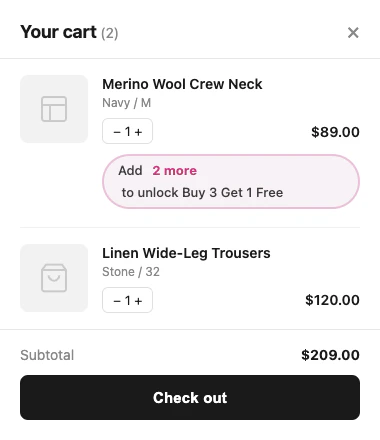
### Inline
The message appears directly below the cart line that relates to the offer. Best for offers tied to a specific product.
 ### Accordion
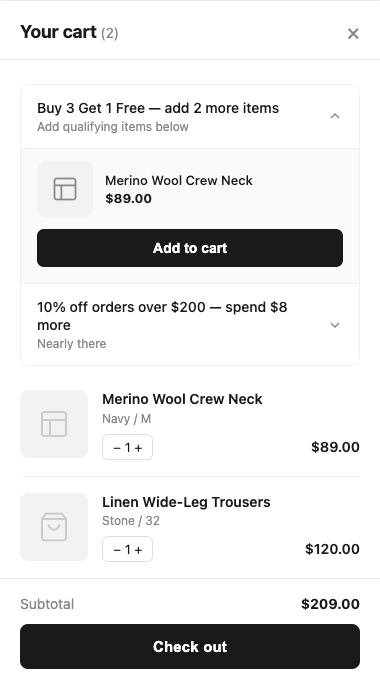
All active upsells are grouped together in a collapsible section at the top of the cart. Best when your store runs several offers at once.
### Accordion
All active upsells are grouped together in a collapsible section at the top of the cart. Best when your store runs several offers at once.
 ### Completed state
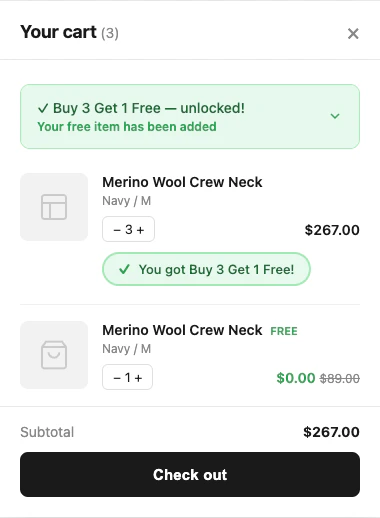
When a shopper qualifies for an offer, Atom can show a confirmation message. This is off by default — turn it on with **Show Completed Upsells**.
### Completed state
When a shopper qualifies for an offer, Atom can show a confirmation message. This is off by default — turn it on with **Show Completed Upsells**.
 ***
## What triggers an upsell
Atom evaluates every active offer against the cart on each update. When the cart is within qualifying range, an upsell fires. There are five trigger types:
| Trigger | When it fires | Example message |
| ---------------------------- | ----------------------------------------------------------------------- | -------------------------------------------------- |
| **Add more qualifier items** | Shopper has some but not all required items | "Add 2 more to unlock Buy 3 Get 1 Free" |
| **Add target items** | Shopper has met the qualifier, but hasn't added the discounted item yet | "You qualify — add 1 more item to get it free" |
| **Spend more** | Cart total is below the spend threshold | "Spend \$15 more to unlock 10% off" |
| **Complete a bundle** | Shopper has started a bundle but hasn't finished it | "Add 1 more item to complete your bundle and save" |
| **Reach the next tier** | Shopper has unlocked one tier and is close to the next | "Add 2 more items to reach tier 3" |
Atom selects the message type automatically based on the offer structure and what's already in the cart. You don't configure this per offer.
***
## How to enable
Turning on upsells requires two steps.
**Step 1 — Enable closeness qualifiers on the offer**
In the Atom dashboard, open the offer you want to show upsells for. Make sure **Closeness Qualifiers** (also called upsell nudges) are enabled for that offer. If this is off, Atom won't generate upsell messages for that offer even if the theme block is on.
**Step 2 — Enable upsells in the theme block**
In Shopify, go to **Online Store → Themes → Customize → Atom Commerce Connector** and turn on **Enable Upsells**.
Both steps are required. The theme block controls whether upsells are displayed — the offer setting controls whether they're generated.
***
## Next steps
* **Set up layout, messages, and styling** → [Cart Upsell Settings](/upsells/settings)
* **Add a free shipping progress bar** → [Free Shipping Bar](/upsells/free-shipping-bar)
***
## What triggers an upsell
Atom evaluates every active offer against the cart on each update. When the cart is within qualifying range, an upsell fires. There are five trigger types:
| Trigger | When it fires | Example message |
| ---------------------------- | ----------------------------------------------------------------------- | -------------------------------------------------- |
| **Add more qualifier items** | Shopper has some but not all required items | "Add 2 more to unlock Buy 3 Get 1 Free" |
| **Add target items** | Shopper has met the qualifier, but hasn't added the discounted item yet | "You qualify — add 1 more item to get it free" |
| **Spend more** | Cart total is below the spend threshold | "Spend \$15 more to unlock 10% off" |
| **Complete a bundle** | Shopper has started a bundle but hasn't finished it | "Add 1 more item to complete your bundle and save" |
| **Reach the next tier** | Shopper has unlocked one tier and is close to the next | "Add 2 more items to reach tier 3" |
Atom selects the message type automatically based on the offer structure and what's already in the cart. You don't configure this per offer.
***
## How to enable
Turning on upsells requires two steps.
**Step 1 — Enable closeness qualifiers on the offer**
In the Atom dashboard, open the offer you want to show upsells for. Make sure **Closeness Qualifiers** (also called upsell nudges) are enabled for that offer. If this is off, Atom won't generate upsell messages for that offer even if the theme block is on.
**Step 2 — Enable upsells in the theme block**
In Shopify, go to **Online Store → Themes → Customize → Atom Commerce Connector** and turn on **Enable Upsells**.
Both steps are required. The theme block controls whether upsells are displayed — the offer setting controls whether they're generated.
***
## Next steps
* **Set up layout, messages, and styling** → [Cart Upsell Settings](/upsells/settings)
* **Add a free shipping progress bar** → [Free Shipping Bar](/upsells/free-shipping-bar)