> ## Documentation Index
> Fetch the complete documentation index at: https://docs.atomcommerce.io/llms.txt
> Use this file to discover all available pages before exploring further.
# Free Shipping Progress Bar
> Show shoppers how close they are to qualifying for free shipping with a progress bar in your store's header or cart drawer.
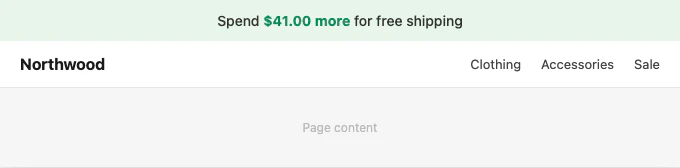
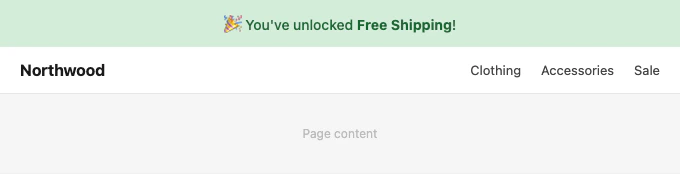
The free shipping bar shows shoppers how much more they need to spend to unlock free shipping. It appears as a banner at the top of your store, inside the cart drawer, or both — and updates automatically as the cart changes.
***
## Where it appears in Shopify
The bar can appear in three places:
* **Top bar** — a sticky banner fixed to the top of every page (or cart page only)
* **Minicart** — inside the cart drawer, above the cart lines
* **Both** — top bar and minicart at the same time
Set this with the **Display Location** setting in the Atom Commerce Connector theme block: **Online Store → Themes → Customize → Atom Commerce Connector → Free Shipping Bar**.
***
## What shoppers see
### In progress — shopper hasn't qualified yet
 ### Qualified — shopper has met the threshold
 A screenshot of the bar inside the cart drawer (minicart location) is not yet available.
***
## What it requires
The free shipping bar reads from a **free shipping offer created in Atom Commerce** with a spend threshold. It does not connect to Shopify's native free shipping rates or any other discount system.
If no active free shipping offer exists, the bar hides automatically — unless you set an **Initial Message**, in which case it shows that text instead.
**Does it affect checkout?** No. The bar is a display element only. Whether a shopper actually qualifies for free shipping is determined at checkout by Atom's discount logic.
***
## Eligible subtotal vs cart total
The bar tracks the shopper's **eligible cart subtotal** — not the raw cart total. This matters when your free shipping offer excludes certain products or fulfillment methods.
**Example:**
* Offer: Free shipping on orders over \$100
* Excluded: gift cards, Pickup in Store
* Cart: $50 t-shirt + $50 hoodie + $30 gift card = $130 visible total
* Eligible subtotal: \$100 (gift card excluded)
* Bar shows: \$0 remaining — shopper qualifies if they choose standard shipping
If the shopper selects Pickup in Store at checkout, the free shipping discount won't apply — that fulfillment method is excluded from the offer.
If your free shipping bar appears to show the wrong amount remaining, check whether any products in the cart are excluded from the offer, or whether the shopper's selected fulfillment method is excluded.
***
## Basic setup
Turn on **Enable Free Shipping Bar**.
Set **Display Location** to **Top Bar**, **Minicart**, or **Both**.
Use **Top Bar** for store-wide visibility — it's the most prominent placement. Use **Minicart** if you want the message close to checkout without affecting the rest of the site. Use **Both** for maximum visibility.
Leave **Progress Message** and **Success Message** blank to use Atom's defaults.
If you customize, use `[AMOUNT]` for the remaining spend and `[DISCOUNT]` for the offer name:
```
Only [AMOUNT] away from [DISCOUNT]
```
Shopper sees: Only \$15.00 away from Free Shipping
Add an **Initial Message** to show the bar even when no free shipping offer is active — for example, to announce your free shipping threshold before a shopper starts adding items.
Leave it blank to hide the bar entirely when there's no active offer.
***
## Messages
The bar has four message slots. Only `[DISCOUNT]` and `[AMOUNT]` tokens are supported — the `**bold**` emphasis syntax used in cart upsell pills is not available here. The amount is automatically styled using the **Amount Color** setting.
| Setting | When shown | Available tokens |
| -------------------- | ------------------------------------------------- | ------------------------ |
| **Progress Message** | While the shopper is working toward the threshold | `[DISCOUNT]`, `[AMOUNT]` |
| **Success Message** | After the shopper qualifies | `[DISCOUNT]` |
| **Initial Message** | When no active free shipping offer exists | — |
| **Additional Text** | Always, as a second line below the main message | — |
**Additional Text** is useful for small-print notes, for example:
```
*excludes fine art & posters*
```
***
## Styling
### Top bar appearance
| Setting | Default | What it controls |
| -------------------- | ----------- | -------------------------------------------------- |
| **Background Type** | Solid Color | Choose between a solid color or a full-width image |
| **Background Color** | `#e8f5e9` | Fill color (when background type is solid color) |
| **Background Image** | — | Image (when background type is image) |
| **Text Color** | `#333333` | Message text |
| **Display Pages** | All Pages | Show on all pages, or cart page only |
### Amount styling
The remaining spend amount uses separate styling from the rest of the message text.
| Setting | Default | What it controls |
| ---------------------- | ----------------- | -------------------------- |
| **Amount Color** | `#008a5e` (green) | Color of the spend amount |
| **Amount Font Weight** | 600 | Weight of the spend amount |
***
## Behavior
These settings are optional. Most stores don't need them.
| Setting | Default | What it does |
| ----------------------------- | ------- | ----------------------------------------------------------------------------------------------------------------------------------------------------------------------- |
| **Shipping Details Page URL** | — | Makes the bar a clickable link to a page of your choice (e.g. your shipping policy) |
| **Enable Shipping Bar Delay** | Off | Waits before showing the bar; the timer resets if the user moves their mouse. Use this to avoid content shifting while a shopper is actively interacting with the page. |
| **Delay Duration** | 2000 ms | How long to wait before showing the bar (0–9900 ms) |
| **Animation Duration** | 0 s | How long the slide-down animation takes (0–2 s). Leave at 0 for no animation. |
A screenshot of the bar inside the cart drawer (minicart location) is not yet available.
***
## What it requires
The free shipping bar reads from a **free shipping offer created in Atom Commerce** with a spend threshold. It does not connect to Shopify's native free shipping rates or any other discount system.
If no active free shipping offer exists, the bar hides automatically — unless you set an **Initial Message**, in which case it shows that text instead.
**Does it affect checkout?** No. The bar is a display element only. Whether a shopper actually qualifies for free shipping is determined at checkout by Atom's discount logic.
***
## Eligible subtotal vs cart total
The bar tracks the shopper's **eligible cart subtotal** — not the raw cart total. This matters when your free shipping offer excludes certain products or fulfillment methods.
**Example:**
* Offer: Free shipping on orders over \$100
* Excluded: gift cards, Pickup in Store
* Cart: $50 t-shirt + $50 hoodie + $30 gift card = $130 visible total
* Eligible subtotal: \$100 (gift card excluded)
* Bar shows: \$0 remaining — shopper qualifies if they choose standard shipping
If the shopper selects Pickup in Store at checkout, the free shipping discount won't apply — that fulfillment method is excluded from the offer.
If your free shipping bar appears to show the wrong amount remaining, check whether any products in the cart are excluded from the offer, or whether the shopper's selected fulfillment method is excluded.
***
## Basic setup
Turn on **Enable Free Shipping Bar**.
Set **Display Location** to **Top Bar**, **Minicart**, or **Both**.
Use **Top Bar** for store-wide visibility — it's the most prominent placement. Use **Minicart** if you want the message close to checkout without affecting the rest of the site. Use **Both** for maximum visibility.
Leave **Progress Message** and **Success Message** blank to use Atom's defaults.
If you customize, use `[AMOUNT]` for the remaining spend and `[DISCOUNT]` for the offer name:
```
Only [AMOUNT] away from [DISCOUNT]
```
Shopper sees: Only \$15.00 away from Free Shipping
Add an **Initial Message** to show the bar even when no free shipping offer is active — for example, to announce your free shipping threshold before a shopper starts adding items.
Leave it blank to hide the bar entirely when there's no active offer.
***
## Messages
The bar has four message slots. Only `[DISCOUNT]` and `[AMOUNT]` tokens are supported — the `**bold**` emphasis syntax used in cart upsell pills is not available here. The amount is automatically styled using the **Amount Color** setting.
| Setting | When shown | Available tokens |
| -------------------- | ------------------------------------------------- | ------------------------ |
| **Progress Message** | While the shopper is working toward the threshold | `[DISCOUNT]`, `[AMOUNT]` |
| **Success Message** | After the shopper qualifies | `[DISCOUNT]` |
| **Initial Message** | When no active free shipping offer exists | — |
| **Additional Text** | Always, as a second line below the main message | — |
**Additional Text** is useful for small-print notes, for example:
```
*excludes fine art & posters*
```
***
## Styling
### Top bar appearance
| Setting | Default | What it controls |
| -------------------- | ----------- | -------------------------------------------------- |
| **Background Type** | Solid Color | Choose between a solid color or a full-width image |
| **Background Color** | `#e8f5e9` | Fill color (when background type is solid color) |
| **Background Image** | — | Image (when background type is image) |
| **Text Color** | `#333333` | Message text |
| **Display Pages** | All Pages | Show on all pages, or cart page only |
### Amount styling
The remaining spend amount uses separate styling from the rest of the message text.
| Setting | Default | What it controls |
| ---------------------- | ----------------- | -------------------------- |
| **Amount Color** | `#008a5e` (green) | Color of the spend amount |
| **Amount Font Weight** | 600 | Weight of the spend amount |
***
## Behavior
These settings are optional. Most stores don't need them.
| Setting | Default | What it does |
| ----------------------------- | ------- | ----------------------------------------------------------------------------------------------------------------------------------------------------------------------- |
| **Shipping Details Page URL** | — | Makes the bar a clickable link to a page of your choice (e.g. your shipping policy) |
| **Enable Shipping Bar Delay** | Off | Waits before showing the bar; the timer resets if the user moves their mouse. Use this to avoid content shifting while a shopper is actively interacting with the page. |
| **Delay Duration** | 2000 ms | How long to wait before showing the bar (0–9900 ms) |
| **Animation Duration** | 0 s | How long the slide-down animation takes (0–2 s). Leave at 0 for no animation. |