> ## Documentation Index
> Fetch the complete documentation index at: https://docs.atomcommerce.io/llms.txt
> Use this file to discover all available pages before exploring further.
# Enable the Shopify Checkout Extension
> Enable the Atom Commerce Shopify checkout extension so fulfillment exclusions and shipping-related discount rules can be enforced correctly at checkout.
The **Atom Checkout Extension** allows you to exclude some **fulfillment methods** from being eligible for discounts.\
For example, you can configure an offer to apply for **standard shipping**, but exclude **local pickup**.
Note: This extension adds no visible UI components to checkout — it only enables Atom Commerce to control when discounts apply based on the customer’s chosen fulfillment method.
## Steps to Enable
1. From your Shopify admin, navigate to **Settings → Checkout**.
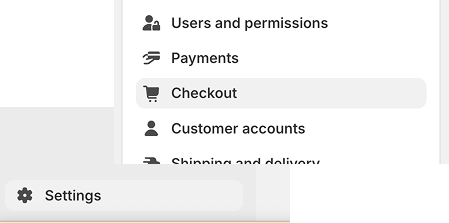 2. Click **Customize** to open the checkout customization screen.
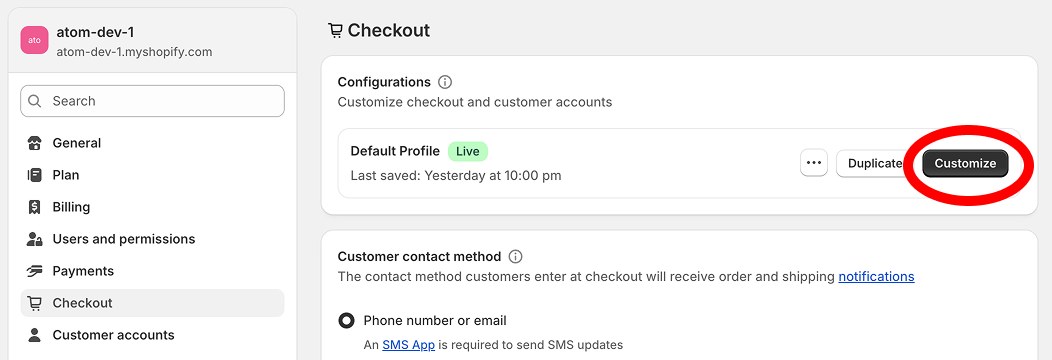 3. In the left sidebar, select **Apps**.
4. Make sure the **All** tab is selected to see all available extensions.
3. In the left sidebar, select **Apps**.
4. Make sure the **All** tab is selected to see all available extensions.
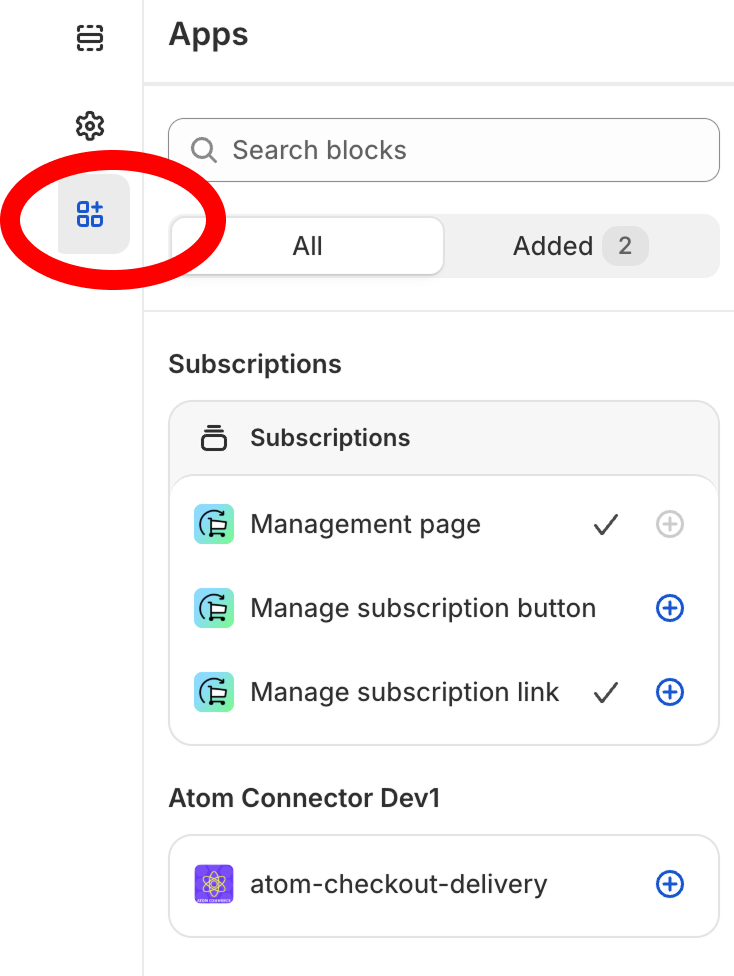 5. Locate **atom-checkout-delivery** and click the **(+)** icon to add it to Checkout.
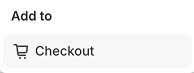 6. The extension will appear at the top of the page. It has **no visible elements**, so its position does not matter.
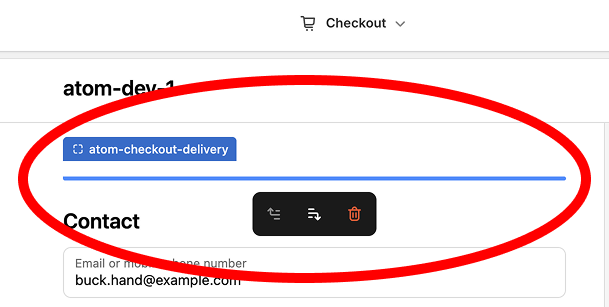 7. Finally, click the **Save** button in the checkout editor to publish your changes.
 ## Example Use Case
* **Allowed**: Apply a discount when the customer selects *Standard Shipping*.
* **Not Allowed**: Prevent the same discount from applying when the customer selects *Local Pickup*.
This ensures discounts are only used with the fulfillment methods you intend, protecting margins and keeping promotional rules consistent.
## When You Need This Extension
You should enable this extension if you use:
* **fulfillment type exclusions**
* **shipping discounts with minimum cart value requirements**
* **free shipping promotions where local pickup or other methods should be excluded**
Without the extension, Atom Commerce cannot reliably enforce these fulfillment-based rules at checkout.
***
## Troubleshooting
Make sure the checkout extension is **installed and saved** in Shopify. Without it, Atom Commerce cannot evaluate fulfillment method conditions.
This is expected. The extension only runs logic behind the scenes and does not render UI in checkout.
Double-check that you clicked **Save** in the checkout editor after enabling the extension. Also, if you just enabled your discount, be sure to make a change to items in your cart to ensure the discount is applied.
## Example Use Case
* **Allowed**: Apply a discount when the customer selects *Standard Shipping*.
* **Not Allowed**: Prevent the same discount from applying when the customer selects *Local Pickup*.
This ensures discounts are only used with the fulfillment methods you intend, protecting margins and keeping promotional rules consistent.
## When You Need This Extension
You should enable this extension if you use:
* **fulfillment type exclusions**
* **shipping discounts with minimum cart value requirements**
* **free shipping promotions where local pickup or other methods should be excluded**
Without the extension, Atom Commerce cannot reliably enforce these fulfillment-based rules at checkout.
***
## Troubleshooting
Make sure the checkout extension is **installed and saved** in Shopify. Without it, Atom Commerce cannot evaluate fulfillment method conditions.
This is expected. The extension only runs logic behind the scenes and does not render UI in checkout.
Double-check that you clicked **Save** in the checkout editor after enabling the extension. Also, if you just enabled your discount, be sure to make a change to items in your cart to ensure the discount is applied.