> ## Documentation Index
> Fetch the complete documentation index at: https://docs.atomcommerce.io/llms.txt
> Use this file to discover all available pages before exploring further.
# Allow Multiple Users Per Order
> Control whether the same discount can be applied multiple times within a single order
Quick Summary
-
Purpose: Controls if the same discount can be used multiple times in one order
-
Default: Disabled (one discount per order)
-
Use Case: Managing discount behavior for multiple customers or scenarios
-
Location: Discount Limits section of offer configuration
## What This Setting Does
The "Allow Multiple Users Per Order" setting controls whether a single discount can be applied multiple times within the same order.
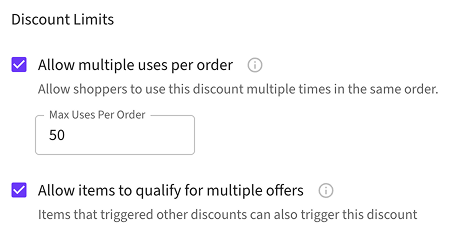
This feature is controlled by the **"Allow Multiple Users Per Order"** checkbox in the Discount Limits section. By default, this checkbox is **unchecked**, meaning each offer can only be applied once per order.
## How It Works
### When Disabled (Default)
* The **"Allow Multiple Users Per Order"** checkbox is **unchecked**
* Each discount can only be applied **once per order**
* Prevents the same discount from being used multiple times
* Helps control discount costs and prevent abuse
### When Enabled
* The **"Allow Multiple Users Per Order"** checkbox is **checked**
* The same discount can be applied **multiple times per order**
* Useful for scenarios where multiple customers should benefit from the same promotion
## Real-World Examples
### Example 1: Family Shopping Scenario
**Scenario:** A parent is shopping for multiple family members and wants to use the same discount for each person.
**Discount:** "20% off any item" (code: FAMILY20)
**With Setting Disabled:**
* Parent adds 3 items to cart
* Discount applies to 1 item only
* **Result:** 20% off 1 item, full price for other 2 items
**With Setting Enabled:**
* Parent adds 3 items to cart
* Discount applies to all 3 items
* **Result:** 20% off all 3 items
### Example 2: Free Gift with Each Purchase
**Scenario:** A customer wants to buy multiple pairs of jeans and get a free gift with each pair.
**Discount:** "Get a free gift with each pair of jeans" (automatic)
**Customer Action:** Buys 3 pairs of jeans (\$150 each)
**With Setting Disabled:**
* Customer adds 3 pairs of jeans to cart
* Discount applies once (1 free gift total)
* **Result:** Customer gets 1 free gift for the entire order
**With Setting Enabled:**
* Customer adds 3 pairs of jeans to cart
* Discount applies 3 times (1 free gift per pair)
* **Result:** Customer gets 3 free gifts (one for each pair of jeans)
### Example 3: Bulk Purchase Scenario
**Scenario:** A customer wants to buy multiple quantities of the same product with a quantity-based discount.
**Discount:** "Buy 2, Get 1 Free" (automatic)
**With Setting Disabled:**
* Customer adds 6 items to cart
* Discount applies once (buy 2, get 1 free)
* **Result:** Customer pays for 4 items, gets 2 free
**With Setting Enabled:**
* Customer adds 6 items to cart
* Discount applies twice (buy 2 get 1 free, then buy 2 more get 1 free)
* **Result:** Customer pays for 4 items, gets 2 free (same result in this case)
## Decision Guide
Use this setting as a business control:
| Goal | Recommended setting | Why |
| ------------------------------------------------------------------ | ---------------------- | --------------------------------------------------------------- |
| One discount per order, predictable cost | **Disabled** (default) | Controls margin impact and prevents accidental over-application |
| Let one order receive repeated benefit from the same offer | **Enabled** | Better for family/group carts and bulk purchase campaigns |
| Seasonal or acquisition campaign with intentionally generous value | **Enabled** | Improves conversion and perceived value |
| Tight budget or strict promotion caps | **Disabled** | Keeps total discount exposure easier to forecast |
Start with **Disabled**, then enable only for offers where repeat application is part of the campaign strategy.
## How to Configure
### Step 1: Navigate to Your Offer
1. Go to the Atom admin interface
2. Find the offer you want to configure
3. Click to edit the offer
### Step 2: Locate Discount Limits
1. Scroll down to the **Discount Limits** section
2. Look for the **"Allow Multiple Users Per Order"** setting
 ### Step 3: Configure the Setting
1. **Check the box** to enable multiple uses per order
2. **Leave unchecked** to limit to one use per order (default)
3. Save your changes
This setting is available for both automatic and code-based offers. The behavior applies regardless of how the discount is triggered.
## Business Impact
### Positive Impacts
* **Higher Customer Satisfaction:** Customers get more value from their purchases
* **Increased Average Order Value:** Customers may buy more to take advantage of multiple discounts
* **Better Customer Experience:** More generous discount policies can improve loyalty
### Potential Risks
* **Higher Discount Costs:** Multiple applications can significantly increase promotional expenses
* **Margin Erosion:** Excessive discounting can impact profitability
* **Budget Overruns:** May exceed planned promotional budgets
## Best Practices
### Testing Your Configuration
1. **Test with small orders** first to verify behavior
2. **Monitor discount costs** after enabling the setting
3. **Track customer behavior** to ensure the setting achieves your goals
### Monitoring Performance
* **Track discount usage** to understand how customers are using the feature
* **Monitor profit margins** to ensure the setting doesn't negatively impact profitability
* **Analyze customer satisfaction** to measure the impact on customer experience
### Strategic Considerations
* **Start conservative:** Begin with the setting disabled and enable only when needed
* **Set clear budgets:** Establish limits on total discount exposure
* **Regular reviews:** Periodically assess whether the setting is meeting your business goals
## Troubleshooting
### Common Issues
**Issue:** Discount isn't applying multiple times even when enabled
* **Solution:** Check that the offer is eligible for multiple applications and that all conditions are met
**Issue:** Unexpected high discount costs after enabling
* **Solution:** Review your discount configuration and consider adding additional limits or conditions
**Issue:** Customers reporting they can't use the discount multiple times
* **Solution:** Verify the setting is properly enabled and communicate the policy clearly to customers
## Related Topics
* [Exclude Items Already Used to Qualify for Another Offer](/discount-limits/qualifier-reuse) - Control shared qualifier behavior
* [Offer Priority and Stacking](/offers/priority-and-stacking) - How offers are evaluated
* [Creating Offers](/offers/creating-offers) - Learn to create effective offers
* [Discount Limits Overview](/discount-limits/overview) - Complete guide to discount limits
### Step 3: Configure the Setting
1. **Check the box** to enable multiple uses per order
2. **Leave unchecked** to limit to one use per order (default)
3. Save your changes
This setting is available for both automatic and code-based offers. The behavior applies regardless of how the discount is triggered.
## Business Impact
### Positive Impacts
* **Higher Customer Satisfaction:** Customers get more value from their purchases
* **Increased Average Order Value:** Customers may buy more to take advantage of multiple discounts
* **Better Customer Experience:** More generous discount policies can improve loyalty
### Potential Risks
* **Higher Discount Costs:** Multiple applications can significantly increase promotional expenses
* **Margin Erosion:** Excessive discounting can impact profitability
* **Budget Overruns:** May exceed planned promotional budgets
## Best Practices
### Testing Your Configuration
1. **Test with small orders** first to verify behavior
2. **Monitor discount costs** after enabling the setting
3. **Track customer behavior** to ensure the setting achieves your goals
### Monitoring Performance
* **Track discount usage** to understand how customers are using the feature
* **Monitor profit margins** to ensure the setting doesn't negatively impact profitability
* **Analyze customer satisfaction** to measure the impact on customer experience
### Strategic Considerations
* **Start conservative:** Begin with the setting disabled and enable only when needed
* **Set clear budgets:** Establish limits on total discount exposure
* **Regular reviews:** Periodically assess whether the setting is meeting your business goals
## Troubleshooting
### Common Issues
**Issue:** Discount isn't applying multiple times even when enabled
* **Solution:** Check that the offer is eligible for multiple applications and that all conditions are met
**Issue:** Unexpected high discount costs after enabling
* **Solution:** Review your discount configuration and consider adding additional limits or conditions
**Issue:** Customers reporting they can't use the discount multiple times
* **Solution:** Verify the setting is properly enabled and communicate the policy clearly to customers
## Related Topics
* [Exclude Items Already Used to Qualify for Another Offer](/discount-limits/qualifier-reuse) - Control shared qualifier behavior
* [Offer Priority and Stacking](/offers/priority-and-stacking) - How offers are evaluated
* [Creating Offers](/offers/creating-offers) - Learn to create effective offers
* [Discount Limits Overview](/discount-limits/overview) - Complete guide to discount limits